Showing posts with label Solution. Show all posts

Wednesday, April 24, 2013

Dynamics AX 2012 Excel Add-in - Issues and Solutions (Method UpdateRecIdVisibility not found)

Dynamics AX 2012 Excel Add-in – Issues and Solutions (Method not found: ‘Void Microsoft.Dynamics.AX.Framework.OfficeAddin.DataSourceContainer.UpdateRecIdVisibility(Boolean))
Purpose: The purpose of this document is to outline some issues you may encounter when using Dynamics AX 2012 Excel Add-in for import of data and provide solutions to resolve them.
 
Issue: ‘Method not found: ‘Void Microsoft.Dynamics.AX.Framework.OfficeAddin.DataSourceContainer.UpdateRecIdVisibility(Boolean)’
 
Reason: After you initially install Microsoft Dynamics AX 2012 R2 Office Add-ins and then install Microsoft Dynamics AX 2012 R2 CU1 the old Microsoft Dynamics AX 2012 R2 DLLs related to Office Add-ins may still be present in the file system. The system uses old Microsoft Dynamics AX 2012 R2 DLLs related to Office Add-ins DLLs which causes this issue
 
Dynamics AX Error
 
For example, on the latest (as of today, April 24, 2013) Microsoft Dynamics AX 2012 R2 CU1 Demo VM this error occurs when you launch Excel 2013, define connection Options and then try to Add Table or Add Data  
 
Please note that Microsoft Dynamics AX 212 R2 CU1 build number is 6.2.1000.156
 
In fact if you look for UpdateRecIdVisibility method in Microsoft Dynamics AX 2012 R2 CU1 Microsoft.Dynamics.AX.Framework.OfficeAddin.dll assembly you will be able to find it there
 
So the real problem is in the fact that the system uses old Microsoft Dynamics AX 2012 R2 Microsoft.Dynamics.AX.Framework.OfficeAddin.dll assembly instead of new one
 
Please note that Microsoft Dynamics AX 212 R2 build number is 6.2.158.0
 
And if you check the version of Microsoft.Dynamics.AX.Framework.OfficeAddin.dll assembly
 
in C:\Windows\Microsoft.NET\assembly\GAC_MSIL folder
 
You will see that it’s 6.2.158.0 which corresponds to Microsoft Dynamics AX 2012 R2
 
Solution: Please delete highlighted above Microsoft.Dynamics.AX.Framework.Office.Addin folders in C:\Windows\Microsoft.NET\assembly\GAC_MSIL folder to get rid of old versions of DLLs   
 
If you get a message that Microsoft.Dynamics.AX.Framework.Office.Addin.dll is being used by another process when you try to delete it, please stop Microsoft Dynamics AX AOS and try again
 
Result: As the result you will be able to Add Tables and Add Data in Excel workbook
 
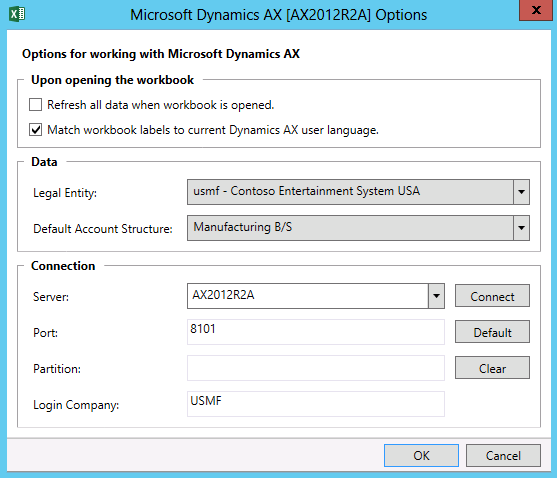
Options
 
Add Tables
 
Field Chooser
 
Specials Thanks is for Chris and Jason for helping to resolve this issue
Please check out Chris’ blog for more interesting articles here: http://blogs.msdn.com/b/chrisgarty/
 
Tags: Dynamics ERP, Dynamics AX 2012, Excel, Dynamics AX 2012 Excel Add-in, Data Import, Data Conversion, Data Migration, Application Integration Framework, Issue, Problem, Solution, Resolution.
 
Note: This document is intended for information purposes only, presented as it is with no warranties from the author. This document may be updated with more content to better outline the issues and describe the solutions.
 
Author: Alex Anikiev, PhD, MCP


Thursday, August 16, 2012

Dynamics AX 2012 Excel Add-in – Issues and Solutions (Timeout issues)

Microsoft Dynamics AX 2012 Excel Add-in – Issues and Solutions (Timeout issues)

Purpose: The purpose of this document is to outline some issues you may encounter when using Dynamics AX 2012 Excel Add-in for import of data and provide solutions to resolve them.

Issue: 'Method 'System.ServiceModel.CommunicationObjectFaultException.Detail' not found'.

Issue: 'The request channel timed out attempting to send after 00:10:00. Increase the timeout value passed to the call to Request or increase the SendTimeout value on the Binding. The time allotted to this operation may have been a portion of a longer timeout'.

Issue: 'The socket connection was aborted. This could be caused by an error processing your message or a receive timeout being exceeded by the remote host, or an underlying network resource issue. Local socket timeout was '00:10:00'.

Reason: This issue occurs because Client-side and/or Server-side binding has insufficient Timeout value settings for sending/receiving of messages.    

Dynamics AX Error
This error is the result of unhandled exception which was re-thrown (2nd level exception), the meaningful exceptions (1st level exceptions) are presented below 


Solution: Appropriate Client-side and/or Server-side binding Timeout value settings for sending/receiving of messages will be increased to handle bigger volumes of data which takes more time, in particular ReceiveTimeout and SendTimeout settings. Please note that you specify Server-side (AOS) binding settings using Microsoft Dynamics AX 2012 Configuration Utility (Client Configuration Utility) > Connection tab > Configure Services button > Microsoft WCF Service Configuration Editor, and you specify Client-side (Adapter) binding settings using Inbound port > Configure button > Microsoft WCF Service Configuration Editor.

Important: Please note that it is recommended to use Microsoft Dynamics AX 2012 DMF (Data Migration Framework) for data migration with large volumes of data because DMF allows for much better performance comparing to Excel Add-in.

In this particular case the issue was caused by Client-side binding Timeout settings which were increased appropriately. You can see the example of Client-side config file if you use WCF Test Client utility to test your Web Service

WCF Test Client

This Client config file (Client.dll.config) is generated from scratch by WCF Test Client utility every time you add Web Service to it for testing. Please see binding settings highlighted with Green below  

<?xml version="1.0" encoding="utf-8"?>
<configuration>
    <system.serviceModel>
        <bindings>
            <netTcpBinding>
                <binding name="NetTcpBinding_BudgetTransactionService" closeTimeout="00:01:00"
                    openTimeout="00:01:00" receiveTimeout="00:10:00" sendTimeout="00:01:00"
                    transactionFlow="false" transferMode="Buffered" transactionProtocol="OleTransactions"
                    hostNameComparisonMode="StrongWildcard" listenBacklog="10"
                    maxBufferPoolSize="524288" maxBufferSize="65536" maxConnections="10"
                    maxReceivedMessageSize="65536">
                    <readerQuotas maxDepth="32" maxStringContentLength="8192" maxArrayLength="16384"
                        maxBytesPerRead="4096" maxNameTableCharCount="16384" />
                    <reliableSession ordered="true" inactivityTimeout="00:10:00"
                        enabled="false" />
                    <security mode="Transport">
                        <transport clientCredentialType="Windows" protectionLevel="EncryptAndSign" />
                        <message clientCredentialType="Windows" />
                    </security>
                </binding>
                <binding name="NetTcpBinding_GeneralJournalService" closeTimeout="00:01:00"
                    openTimeout="00:01:00" receiveTimeout="00:10:00" sendTimeout="00:01:00"
                    transactionFlow="false" transferMode="Buffered" transactionProtocol="OleTransactions"
                    hostNameComparisonMode="StrongWildcard" listenBacklog="10"
                    maxBufferPoolSize="524288" maxBufferSize="65536" maxConnections="10"
                    maxReceivedMessageSize="65536">
                    <readerQuotas maxDepth="32" maxStringContentLength="8192" maxArrayLength="16384"
                        maxBytesPerRead="4096" maxNameTableCharCount="16384" />
                    <reliableSession ordered="true" inactivityTimeout="00:10:00"
                        enabled="false" />
                    <security mode="Transport">
                        <transport clientCredentialType="Windows" protectionLevel="EncryptAndSign" />
                        <message clientCredentialType="Windows" />
                    </security>
                </binding>
            </netTcpBinding>
        </bindings>
        <client>
            <endpoint address="net.tcp://ax2012-a:8201/DynamicsAx/Services/OfficeAddins"
                binding="netTcpBinding" bindingConfiguration="NetTcpBinding_BudgetTransactionService"
                contract="BudgetTransactionService" name="NetTcpBinding_BudgetTransactionService">
                <identity>
                    <servicePrincipalName value="host/AX2012-A.contoso.com" />
                </identity>
            </endpoint>
            <endpoint address="net.tcp://ax2012-a:8201/DynamicsAx/Services/OfficeAddins"
                binding="netTcpBinding" bindingConfiguration="NetTcpBinding_GeneralJournalService"
                contract="GeneralJournalService" name="NetTcpBinding_GeneralJournalService">
               <identity>
                    <servicePrincipalName value="host/AX2012-A.contoso.com" />
                </identity>
            </endpoint>
        </client>
    </system.serviceModel>
</configuration>

You can change Server-side configuration (AOS) using Microsoft Dynamics AX Configuration Utility > Configure Services button

Microsoft Dynamics AX Configuration Utility

Microsoft Service Configuration Editor

NetTCPBinding Before and After
Before
After

You can change Client-side configuration (Adapter) using Inbound form > Configure button
  
Inbound port

Microsoft Service Configuration Editor

NetTCPBinding Before and After
Before
After

After you increase appropriate Client-side and/or Server-side binding Timeout value settings for sending/receiving of messages you can publish bigger volumes of data into Microsoft Dynamics AX 2012 using Excel Add-in

Result

In this particular case using Microsoft Dynamics AX 2012 Demo VM I published 3000 General journal lines (and 1 General journal header) using General journal Web Service and it took about 50 minutes (it's more than default timeouts). Please set up appropriate Filter on Excel spreadsheet in advance to prevent the system from retrieving all General journal headers/lines for display upon completion of import because this data retrieval by itself may take more time than actual import.


Important: Please note that Excel Add-in calls Web Service asynchronously which means that even if you receive exception in Excel Add-in and control is passed back to Excel Add-in with no indication about the result of import, the import process may still be going on background in Worker thread and you will see the result of import after a period of time (in my case it could be 50 minutes). You can also explicitly see these Worker threads on Online users form.


Please note that if you enable Logging on Inbound Port you will explicitly see both Request and Response messages logged in History form, so you can also see exactly the time when import started and when it was completed.

Inbound port

History

Important: Please note that depending on Microsoft Dynamics AX 2012 build you use KB2632761 may have to be installed in order for Excel Add-in to take into account Client-side Binding settings.


Tags: Dynamics ERP, Dynamics AX 2012, Excel, Dynamics AX 2012 Excel Add-in, Data Import, Data Conversion, Data Migration, Application Integration Framework, Issue, Problem, Solution, Resolution.

Note: This document is intended for information purposes only, presented as it is with no warranties from the author. This document may be updated with more content to better outline the issues and describe the solutions.

Author: Alex Anikiev, PhD, MCP

Wednesday, May 23, 2012

Dynamics AX 2012 Excel Add-in – Issues and Solutions (Index was outside the bounds of the array)

Dynamics AX 2012 Excel Add-in –
Issues and Solutions (Index was outside the bounds of the array)
Purpose: The purpose of this document is to outline some issues you may encounter when using Dynamics AX 2012 Excel Add-in for import of data and provide solutions to resolve them.


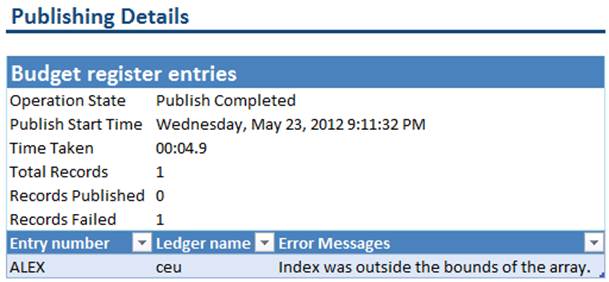
Issue: 'Index was outside the bounds of the array'.


Reason: This issue occurs because some mandatory fields are not specified for particular business entity. As the result validation of request XML will fail and exception will be thrown in Classes\AifWcfInterceptor\AfterReceiveRequest (CIL: AifWcfInterceptor.AfterReceiveRequest.xpp). However this exception will not be handled properly in external calling code (Dynamics AX 2012 Excel Add-in) and instead of meaningful "Invalid document schema" error message the user will see misleading "Index was outside the bounds of the array" error message. Please note that you can see the real error message in Event Viewer and/or Exceptions form assuming that Logging is enabled for appropriate Inbound port. In this example I will focus on Budget entries import using Budget Transactions Service AIF Web Service.  


Dynamics AX Error

Solution: Please specify all mandatory fields for particular business entity you are trying to import before you Publish. In this example initially I didn't specify LedgerDimension field on BudgetTransactionLine table that is a part of Budget Transactions Service AIF Web Service data set which caused 'Index was outside the bounds of the array' error. After I properly specified all mandatory fields on business entities being imported the import process is successful.

Document data sources


Please note that BudgetTransactionsService AIF Web Service is activated as Document data source


Inbound port


Please note that Logging mode is 'All document versions' which is required for troubleshooting. Also it's important to mention that BudgetTransactionsService AIF Web Service operations (create, update, delete, read, etc) were exposed through OfficeAddins Enhanced Inbound port which was successfully activated. Alternatively you can activate BudgetServices Services Group which also contains BudgetTransactionsService AIF Web Service.


Select Data


Data (Header – left and Line – right)

Please note that I specified the very minimum number of fields for BudgetTransactionHeader and BudgerTransactionLine tables looking at Red asterisk icon (Mandatory field) or Yellow Key icon (Foreign Key) next to the respective field in the Field Chooser
BudgetTransactionHeader
BudgetTransactionLine


Please note that LedgerDimension field has its own Dimension icon (not marked with Red asterisk), however LedgerDimension is also mandatory field in BudgetTransactionLine table


Publish


Event Viewer
If you take a look at error message logged in Event Viewer you will see the following error message "Object Server 01:  An error has occurred in the services framework.  Method: AifMessageInspector::AfterReceiveRequest.  Error: System.ServiceModel.FaultException`1[Microsoft.Dynamics.Ax.Services.AifFault]: Invalid document schema. The following error was returned:  The element 'BudgetTransLine' in namespace 'http://schemas.microsoft.com/dynamics/2008/01/documents/BudgetTransaction' has invalid child element 'Price' in namespace 'http://schemas.microsoft.com/dynamics/2008/01/documents/BudgetTransaction'. List of possible elements expected: 'LedgerDimension' in namespace 'http://schemas.microsoft.com/dynamics/2008/01/documents/BudgetTransaction'. (Fault Detail is equal to Microsoft.Dynamics.Ax.Services.AifFault)" which describes the real issue with document schema.


Exceptions form
Same thing can be seen in Exceptions form in Dynamics AX 2012 which shows the same error message 'Invalid document schema. The following error was returned:  The element 'BudgetTransLine' in namespace 'http://schemas.microsoft.com/dynamics/2008/01/documents/BudgetTransaction' has invalid child element 'Price' in namespace 'http://schemas.microsoft.com/dynamics/2008/01/documents/BudgetTransaction'. List of possible elements expected: 'LedgerDimension' in namespace 'http://schemas.microsoft.com/dynamics/2008/01/documents/BudgetTransaction'' as well as request XML message in History form in Dynamics AX 2012


To resolve this issue I'll specify LedgerDimension field for Budget entry line
I also specified more fields for Budget entry header and line for informational purposes


Publish
This time import process is successful


Result

Tags: Dynamics ERP, Dynamics AX 2012, Excel, Dynamics AX 2012 Excel Add-in, Data Import, Data Conversion, Data Migration, Application Integration Framework, Issue, Problem, Solution, Resolution.


Note: This document is intended for information purposes only, presented as it is with no warranties from the author. This document may be updated with more content to better outline the issues and describe the solutions.


Author: Alex Anikiev, PhD, MCP

Tuesday, May 1, 2012

Dynamics AX 2012 Excel Add-in – Issues and Solutions (Cannot have 0 columns)

Dynamics AX 2012 Excel Add-in –  Issues and Solutions (Cannot have 0 columns)

Purpose: The purpose of this document is to outline some issues you may encounter when using Dynamics AX 2012 Excel Add-in for import of data and provide solutions to resolve them.

Issue: 'Cannot have 0 columns'.

Reason: This issue occurs because some tables in Microsoft Dynamics AX 2012 don't have any fields for specific functional purpose or for the purposes of table inheritance just being another logical level in the hierarchy. In the case if such table with no columns will be related to the main table you will see 'Cannot have 0 columns' error even despite the fact that Replacement key may be specified on the table.

Dynamics AX Error

Solution: Please create fictitious (fake) field(s) in the tables related to the main table which have no columns. For example, you may encounter 'Cannot have 0 columns' error when doing Purchase orders data import because Tax1099BoxDetail table and PurchCommitmentLine_PSN table have no columns and they are linked to PurchLine table by Surrogate key. In order to resolve this issue I'll add fake 'ID' field (String) to Tax1099BoxDetail table and PurchCommitmentLine_PSN table so each table will now have at least one field.

PurchLine table is linked to Tax1099BoxDetail table by Surrogate key

PurchLine table is linked to PurchCommitmentLine_PSN table by Surrogate key

You can find all tables related to PurchLine table by looking at Relations node at table level as depicted above, or at EDT (Extended data type) level for EDTs used on PurchLine table fields. 

When you try to add PurchTable table and PurchLine table to Excel Add-in you will see the following error

In order to resolve this you will have to add Replacement keys to the following tables

ReasonTableRef table Replacement key

AgreementHeader table Replacement key

SourceDocumentHeader table Replacement key

SourceDocumentLine table Replacement key

When you will try to add PurchTable table and PurchLine table again you will see the following error

In order to resolve this you will have to add Replacement keys to the following tables

Tax1099BoxDetail table Replacement key

Important: Please note that Tax1099BoxDetail table has no fields

PurchCommitmentLine_PSN table Replacement key

Important: Please note that PurchCommitmentLine_PSN table has no fields

When you try to Publish selected for PurchLine table you will see the following error

This is because Tax1099DetailBox table and PurchCommitmentLine_PSN table have no columns and they are linked to PurchLine table by Surrogate key

In order to resolve this you will have to add fictitious (fake) field(s) to Tax1099DetailBox table and PurchCommitmentLine_PSN table so they have at least one field. In this case I added 'ID' field (String) to Tax1099DetailBox table and PurchCommitmentLine_PSN table. I didn't plan to introduce any data into Tax1099DetailBox table and PurchCommitmentLine_PSN table, so I also added 'ID' field to the Replacement key with the assumption that this key will be unique.

Tax1099DetailBox table new 'ID' field (String)

PurchCommitmentLine_PSN table new 'ID' field (String)

Now if you do Publish selected for PurchLine table you will have expected result

You can apply the same logic when resolving this error for different type of data import using Excel Add-in

It's recommended to remove these data model modifications once you complete data import activities

Please make sure to refresh Caches after you change the data model and restart Excel before publishing data. It's recommended to restart AOS to make sure that the latest data model changes will be taken into account in Excel Add-in

Tags: Dynamics ERP, Dynamics AX 2012, Excel, Dynamics AX 2012 Excel Add-in, Data Import, Data Conversion, Data Migration, Application Integration Framework, Issue, Problem, Solution, Resolution.

Note: This document is intended for information purposes only, presented as it is with no warranties from the author. This document may be updated with more content to better outline the issues and describe the solutions.

Author: Alex Anikiev, PhD, MCP